
A gaming laptop can be an expensive investment, so discovering that it won’t turn on, overheats, displays a black screen, or suddenly shuts down can feel like a disaster. But is a damaged machine automatically worthless? Not at all.
A broken gaming laptop is a little like a car that won’t start: the problem could be something minor, or it could involve an expensive major component. Before you throw it away or spend hundreds on repairs, it’s worth finding out what’s actually wrong.
This guide explains common failures, practical troubleshooting methods, repair decisions, upgrade possibilities, and ways to get value from a damaged machine.
1. What Does “Broken Gaming Laptop” Really Mean?
A laptop doesn’t have to be completely dead to be considered broken. In fact, many machines described as “broken” have only one faulty component.
Common Signs of Damage
You might have a hardware or software problem if your laptop:
- Doesn’t power on.
- Turns on but shows no picture.
- Randomly shuts down.
- Gets extremely hot.
- Produces unusual fan noise.
- Shows blue-screen errors.
- Runs games much slower than before.
- Doesn’t detect its SSD.
- Has a cracked display.
- Has damaged keyboard keys.
- Won’t charge.
- Has loose or damaged ports.
- Restarts during demanding games.
The important thing is not to assume that the most expensive component is responsible.
For example, a laptop with a black screen doesn’t necessarily have a dead GPU. The display cable, RAM, screen panel, BIOS, or even brightness settings could be responsible.
Hardware vs. Software Problems
Gaming laptops contain many interconnected parts. The processor, graphics chip, memory, storage, motherboard, cooling system, battery, display, and power system all need to work together.
Software problems are generally easier and cheaper to resolve. Windows corruption, outdated drivers, malware, or incorrect settings can cause serious-looking symptoms without any physical damage.
Hardware faults are different. A failed motherboard or graphics processor can be considerably more expensive to repair.
That’s why diagnosis should always come before spending money.
2. How to Diagnose a Broken Gaming Laptop
Before opening the laptop, start with simple tests. You don’t need to be a computer engineer to perform basic troubleshooting.
Start With the Power Supply
Disconnect the charger and inspect it carefully.
Look for:
- Frayed cables.
- Bent connectors.
- Burn marks.
- Loose charging plugs.
- A damaged power brick.
If the charger has an indicator light, check whether it turns on.
Then connect the charger directly to a reliable wall outlet and try starting the computer again.
If the laptop works only with the charger connected, the battery may be failing.
Perform a Power Reset
A power reset can sometimes clear temporary electrical or firmware problems.
Shut the machine down, disconnect the charger, remove external accessories, and hold the power button for around 15–30 seconds. Then reconnect the charger and try again.
The exact procedure varies by manufacturer, so consult the manufacturer’s instructions before removing an internal battery.
Check External Accessories
Remove:
- USB drives
- External hard drives
- Controllers
- Headsets
- Memory cards
- External monitors
- USB hubs
A faulty peripheral can occasionally interfere with startup.
Listen to the Laptop
Sound can provide useful clues.
If you hear fans spinning but see nothing, the machine may be receiving power while experiencing a display, memory, graphics, or firmware problem.
If there is absolutely no response, power delivery becomes a more important suspect.
Some laptops also provide diagnostic LED patterns or beep codes. Check your manufacturer’s support documentation for their meaning.
3. Gaming Laptop Won’t Turn On: What Should You Check?
A laptop that refuses to start is one of the most worrying failures, but there are several possibilities.
Test the Charger and Charging Port
A damaged charger can make a healthy laptop appear completely dead.
If you have access to a compatible, manufacturer-approved charger with the correct specifications, testing it can help narrow down the problem.
Don’t randomly use a charger simply because its connector fits. Voltage and power requirements matter.
Inspect the Battery
Lithium-ion batteries naturally lose capacity over time. Heavy gaming also places significant thermal and electrical demands on a laptop.
Warning signs include:
- Extremely short battery life.
- Unexpected shutdowns.
- Failure to charge.
- Battery swelling.
- The chassis becoming unusually raised.
Never puncture, crush, or attempt to open a swollen lithium-ion battery. Stop using the device and seek qualified service.
When the Motherboard Is Suspected
The motherboard connects many of the laptop’s major components. If it fails, symptoms can range from no power to random crashes.
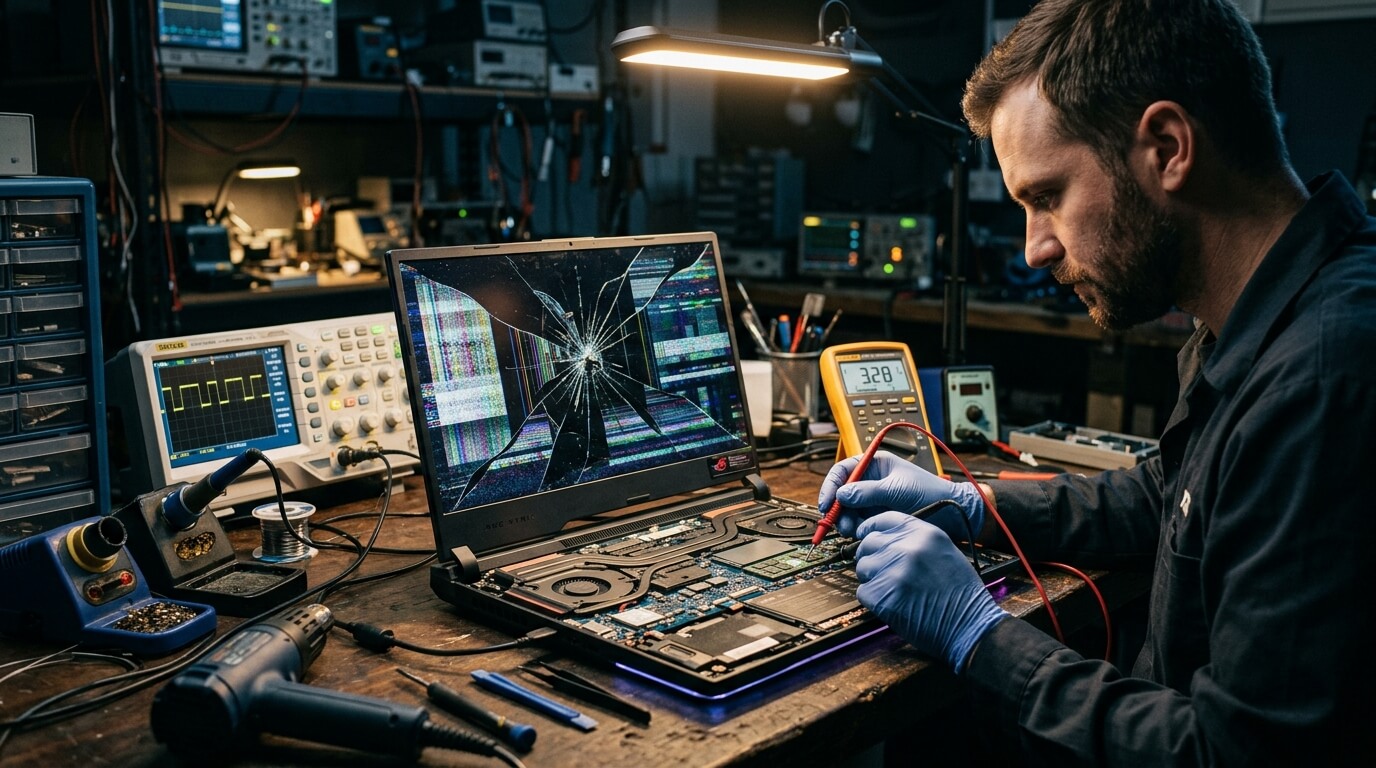
Motherboard repair can involve microscopic components and specialized equipment. For that reason, it’s generally not an ideal beginner DIY project.
If a technician says the motherboard needs replacement, ask for the total repair cost before approving the work.
4. Black Screen, Flickering Display, or Graphics Problems
A gaming laptop can power on perfectly while displaying nothing. This situation often leads people to immediately blame the GPU, but that isn’t always correct.
Test With an External Monitor
If the laptop supports an external display, connect it and check whether an image appears.
If the external monitor works while the built-in screen remains black, the problem may involve:
- LCD panel.
- Display cable.
- Backlight.
- Screen connector.
- Display assembly.
If neither screen works, graphics hardware, RAM, motherboard, or firmware becomes more relevant.
Check RAM
Faulty or improperly seated memory can prevent a computer from displaying an image.
If your laptop has accessible RAM and you’re comfortable opening it, memory can sometimes be reseated or tested individually.
However, modern gaming laptops vary considerably. Some use soldered memory, while others provide upgradeable modules.
GPU Problems
Dedicated graphics processors handle much of the workload in modern games. If the GPU develops a hardware fault, you might experience:
- Graphical artifacts.
- Crashes under load.
- Driver failures.
- Black screens.
- Sudden performance drops.
Driver problems can imitate hardware failure, so reinstalling or updating the correct graphics driver may be worthwhile before assuming the GPU itself has failed.
For general repair guidance, iFixit repair guides can be a useful starting point.
5. Overheating: One of the Most Common Gaming Laptop Problems
Gaming laptops work hard. Their compact bodies must remove heat generated by the CPU and GPU, which means cooling is extremely important.
Why Does a Gaming Laptop Overheat?
Common causes include:
- Dust buildup.
- Blocked air vents.
- Weak or damaged fans.
- Old thermal compound.
- High ambient temperatures.
- Poor airflow.
- Heavy background processes.
- Excessive gaming workloads.
Think of your cooling system as the laptop’s lungs. If air can’t move freely, heat has nowhere to go.
Symptoms of Thermal Problems
Watch for:
- Very loud fans.
- Keyboard becoming extremely hot.
- Performance dropping after several minutes.
- Sudden shutdowns.
- Game stuttering.
- CPU or GPU temperatures becoming unusually high.
Improve Airflow
Place the laptop on a hard, flat surface. Avoid using it on beds, blankets, or soft furniture that can block air intake.
Clean accessible vents carefully using appropriate equipment.
If internal cleaning or thermal compound replacement is necessary, follow a service manual for your exact model.
Should You Replace Thermal Paste?
Potentially, yes—but only if you’re comfortable disassembling the machine and know how to apply the correct material.
A poor application can create new problems. Some gaming laptops also use different thermal materials for different components, so don’t assume that every part should receive ordinary thermal paste.
6. SSD, HDD, Windows, and Boot Problems
Not every broken gaming laptop has a hardware failure.
Sometimes the computer simply can’t find the operating system.
Signs of Storage Problems
You may see messages such as:
- “No bootable device.”
- “Operating system not found.”
- Automatic repair loops.
- Extremely slow startup.
- Frequent file errors.
- Freezing during file access.
An aging hard disk can be especially vulnerable to mechanical failure, while SSDs can also eventually fail.
Check Whether the Drive Is Detected
If you can enter the BIOS or UEFI firmware menu, check whether the storage device appears.
If it isn’t detected, there could be an issue with:
- The SSD.
- Connection.
- Storage slot.
- Motherboard.
- Firmware.
If the drive is detected but Windows won’t start, the problem may be software-related.
Protect Your Data First
If important photos, documents, school files, or business information are stored on the laptop, don’t repeatedly experiment with risky repairs.
Data recovery can become more difficult when a failing drive is repeatedly stressed.
Before reinstalling Windows or formatting a drive, make sure you understand what data will be lost.
7. Repair or Replace: Which Option Makes Financial Sense?
This is where many owners make a costly mistake.
A repair isn’t automatically worthwhile just because the laptop was expensive when new.
Calculate the Real Repair Cost
Consider:
Repair cost + future maintenance + remaining useful life
Compare that with the price of a replacement machine offering similar performance.
For example, imagine a five-year-old gaming laptop needs a motherboard costing almost as much as a newer entry-level gaming laptop.
Would you spend the money?
Probably not—unless the older machine has sentimental value or a particularly valuable configuration.
A Simple Decision Table
| Problem | Typical Difficulty | Repair Potential |
| Dirty vents | Low | Excellent |
| Faulty charger | Low | Excellent |
| Worn battery | Low–Medium | Excellent |
| Damaged SSD | Medium | Excellent |
| RAM problem | Low–Medium | Excellent |
| Broken display | Medium | Good |
| Cooling fan | Medium | Good |
| Keyboard | Medium | Good |
| Motherboard | High | Depends on cost |
| GPU hardware failure | High | Often expensive |
The key question isn’t “Can it be repaired?”
It’s “Does repairing it make financial sense?”
8. Which Repairs Can You Safely Attempt Yourself?
DIY repair can save money, but it’s important to know your limits.
Beginner-Friendly Tasks
Depending on the model, you may be able to:
- Replace the battery.
- Upgrade RAM.
- Replace an SSD.
- Clean vents.
- Replace a fan.
- Reinstall Windows.
- Update drivers.
- Replace a damaged charger.
Always consult documentation for the specific laptop.
Repairs Better Left to Professionals
Be cautious with:
- Motherboard component repair.
- GPU chip-level repair.
- Liquid damage.
- Burned circuits.
- Soldering.
- Swollen batteries.
- Complex connector replacement.
A mistake inside a laptop can turn a repairable problem into a completely dead motherboard.
9. Liquid Damage Requires Immediate Action
Water, coffee, soft drinks, and gaming laptops are a terrible combination.
If liquid enters the machine, shut it down immediately.
Disconnect power if it is safe to do so and avoid repeatedly attempting to turn it on.
Liquid can create short circuits and corrosion. Sugary drinks can be particularly troublesome because they leave residue behind.
Do not rely on the old “put it in rice” trick. Proper inspection and cleaning are more useful when liquid has entered internal electronics.
If valuable data is involved, professional assistance may be worthwhile.
10. How to Sell a Broken Gaming Laptop
Suppose repair isn’t economical. Does that mean the laptop has zero value?
Not necessarily.
A broken gaming laptop may still contain useful:
- RAM.
- SSD.
- Display.
- Keyboard.
- Cooling fans.
- Speakers.
- Charger.
- Hinges.
- Housing components.
- Other replacement parts.
Be Honest in Your Listing
Don’t advertise a non-working computer as “like new.”
Instead, clearly explain:
- What works.
- What doesn’t work.
- Whether it powers on.
- Whether the screen works.
- Whether the charger is included.
- Whether storage is included.
- Whether there is liquid damage.
- Whether the machine has been opened.
Honesty can attract repair technicians, hobbyists, and people searching for replacement parts.
Protect Your Personal Information
Before selling a functioning or partially functioning laptop, remove personal accounts and securely erase your data where possible.
If the storage device contains sensitive information and you cannot confidently wipe it, consider removing the drive and handling it separately.
11. Creative Ways to Reuse a Broken Gaming Laptop
A damaged computer doesn’t necessarily belong in the trash.
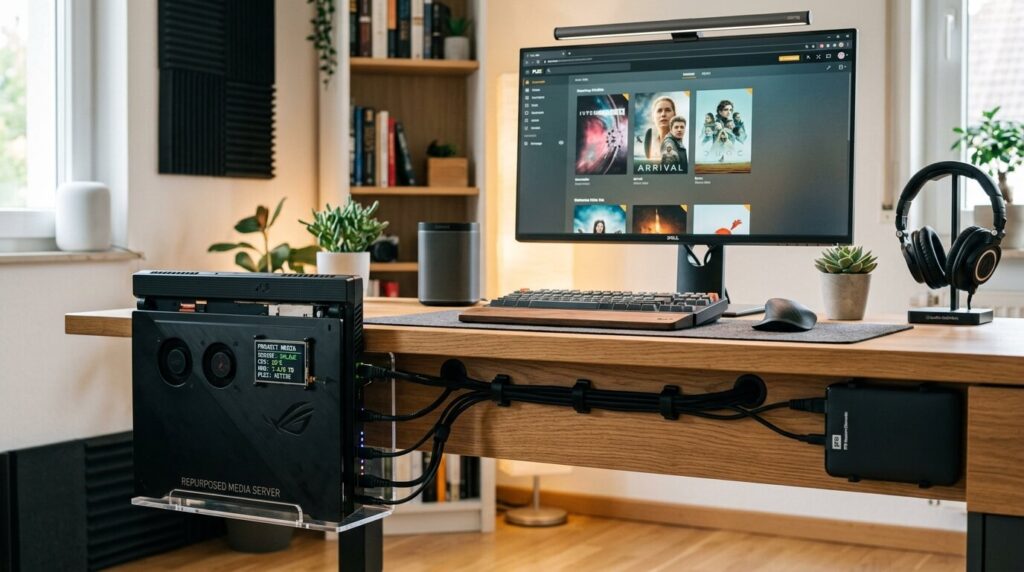
Turn It Into a Media Machine
If the motherboard and display still work, but gaming performance is poor, it might become a basic media or browsing device.
Use the Display
Some laptop panels can be converted into standalone monitors using compatible controller boards.
This requires identifying the exact panel model and buying the correct controller.
Salvage the SSD
A healthy SSD can potentially be reused in another compatible computer or placed into a suitable external enclosure.
Reuse RAM
Compatible laptop memory can sometimes be installed in another system.
Check generation, capacity, speed, and compatibility before purchasing or installing components.
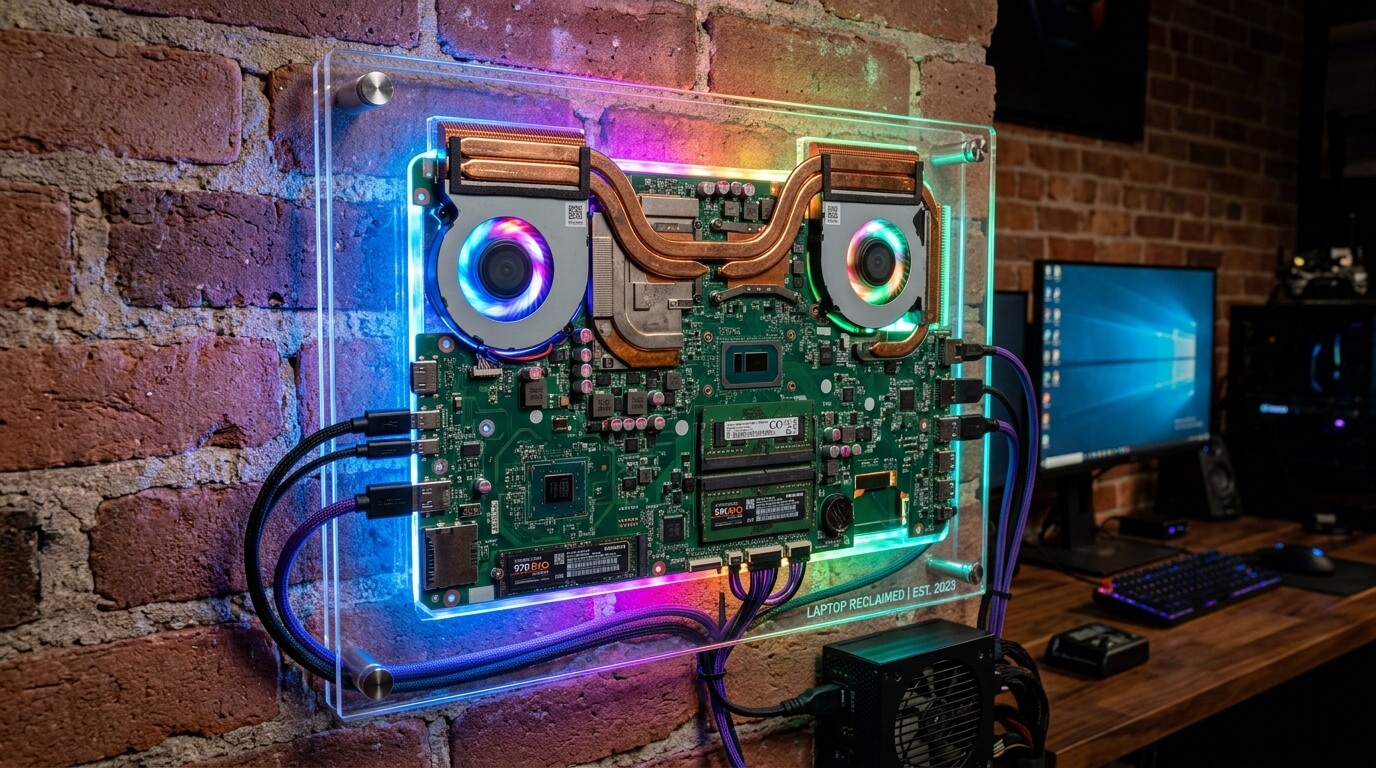
Keep It as a Learning Project
For someone interested in electronics or computer repair, an old gaming laptop can become a practical training platform.
You can learn how components fit together, how cooling systems work, how storage is installed, and how laptop troubleshooting is performed.
12. Six Frequently Asked Questions About Broken Gaming Laptops
FAQ 1: Can a broken gaming laptop be repaired?
Yes. Many failures are repairable, especially problems involving batteries, chargers, storage, RAM, fans, displays, and software. However, severe motherboard or GPU damage may make repair financially impractical.
FAQ 2: Is a gaming laptop worth repairing?
It depends on its age, original specifications, current market value, and repair price. Compare the complete repair cost with the price of a comparable replacement before making a decision.
FAQ 3: Why does my gaming laptop turn on but show a black screen?
Possible causes include RAM, display cables, screen failure, GPU problems, BIOS issues, or other hardware faults. Testing with an external monitor can help narrow down the cause.
FAQ 4: Can overheating permanently damage a gaming laptop?
Excessive heat can contribute to component degradation and instability. Good airflow, clean cooling systems, and sensible thermal management can help reduce unnecessary stress.
FAQ 5: Can I replace the GPU in a gaming laptop?
Usually, not in the same simple way you would replace a desktop graphics card. Many laptop GPUs are integrated into the motherboard. Some specialized gaming laptops use upgradeable modules, but compatibility is highly model-specific.
FAQ 6: Should I sell my laptop if it is broken?
Selling can make sense when repair costs are too high. Be transparent about the condition, remove personal data, and consider selling it as a repair project or for parts.
Conclusion: Don’t Give Up on a Broken Gaming Laptop Too Quickly
A broken gaming laptop can look like an expensive dead end, but the situation isn’t always as bad as it first appears. A faulty charger, battery, SSD, RAM module, cooling fan, or display can sometimes be replaced without replacing the entire machine.
The smartest approach is simple: diagnose first, calculate the cost, and repair only when the numbers make sense.
If repair isn’t practical, you still have options. You can sell the machine for parts, reuse healthy components, or turn it into a learning project.
Most importantly, don’t rush. A few careful checks today could save you from spending money you don’t need to spend.
Post-article message: A broken gaming laptop isn’t necessarily useless—understanding the problem is the first powerful step toward fixing, upgrading, selling, or reusing it.