
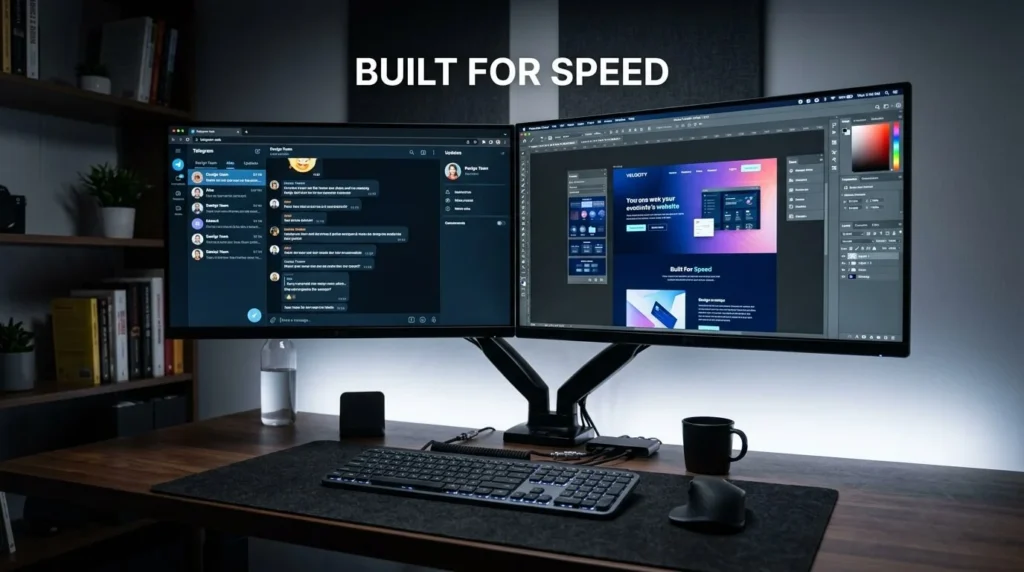
elegram Web has quietly become one of the most convenient ways to stay connected without downloading a single app. Whether you’re at work, using a shared computer, or simply don’t want another app eating up storage on your phone, Telegram Web lets you send messages, share files, and manage chats right from your browser. In this guide, you’ll learn exactly how Telegram Web works, how to set it up in minutes, and how to fix the most common problems people run into along the way.
What Is Telegram Web?
Telegram Web is the browser-based version of the Telegram messaging app. Instead of installing software on your computer, you simply open a webpage, scan a QR code with your phone, and your entire Telegram account — chats, contacts, media, and all — appears on your screen. It runs on nearly any modern browser, including Chrome, Firefox, Edge, and Safari, and it syncs in real time with your mobile app.
Unlike some messaging platforms that require a separate account for desktop use, Telegram Web mirrors your existing account. There’s nothing new to remember, no separate password, and no extra registration step.
Why People Choose Telegram Web Over the Desktop App
A lot of users assume they need to download the Telegram desktop application to chat from a computer, but that’s not the case. Telegram Web has a few clear advantages:
No Installation Required
You skip the download entirely. This matters a lot for people using work computers, public libraries, or internet cafes where installing software isn’t allowed or practical.
Works Across Devices Instantly
Log in from any computer, and your messages are right there. Log out, and nothing is left behind on that machine — a big plus for privacy on shared devices.
Lightweight and Fast
Because it runs in the browser, Telegram Web doesn’t consume system resources the way a full desktop app might. For older computers or low-spec laptops, this can make a noticeable difference.
Ideal for Quick Access
If you just need to send one file or reply to a message during a busy workday, opening a browser tab is often faster than launching and waiting for a separate application.
How to Log In to Telegram Web (Step-by-Step)
Setting up Telegram Web takes less than a minute if you have your phone nearby. Here’s the process:
- Open your browser and go to the official Telegram Web page.
- Choose your version. Telegram offers two web interfaces — a lighter version (often labeled A) and a more feature-rich one (often labeled K or Z, depending on updates). Most users prefer the fuller-featured version for a closer match to the mobile experience.
- Scan the QR code. On your phone, open the Telegram app, go to Settings, and select “Devices” or “Linked Devices,” then “Link Desktop Device.” Point your camera at the QR code on your screen.
- You’re in. Your chats, groups, and channels will load automatically within seconds.
From here, you can send messages, share images and documents, create voice notes, and even manage group settings — almost everything the mobile app offers.
Common Features You Can Use on Telegram Web
People often assume the web version is a stripped-down experience, but that’s far from true. Here’s what you can actually do:
Send and Receive Files
Telegram is well known for its generous file-sharing limits, and this carries over to the web version. You can drag and drop documents, images, or videos directly into a chat window.
Manage Multiple Chats and Channels
If you run a business page, a community group, or follow multiple channels, Telegram Web makes it easy to switch between them without cluttering your phone screen.
Use Bots and Automations
Many businesses rely on Telegram bots for customer support or notifications. These work seamlessly through the browser, so you don’t need your phone in hand to manage automated workflows.
Search Through Chat History
Need to find a message from three months ago? Telegram Web’s search function makes digging through long chat histories far less painful than scrolling manually.
Troubleshooting: What to Do When Telegram Web Won’t Load
Even reliable tools run into hiccups now and then. Here are the most common issues and quick fixes:
QR Code Not Scanning
Make sure your phone’s camera has a clear, well-lit view of the screen. If it still fails, try refreshing the web page to generate a new code.
Messages Not Syncing
This is usually a connectivity issue. Check that both your phone and computer have a stable internet connection, then refresh the browser tab.
Getting Logged Out Unexpectedly
Telegram automatically ends inactive web sessions after a period of time for security reasons. Simply scan the QR code again to reconnect.
Browser Compatibility Issues
Older or outdated browsers sometimes struggle to load Telegram Web properly. Updating your browser to the latest version usually resolves display glitches or loading delays.
Is Telegram Web Safe to Use?
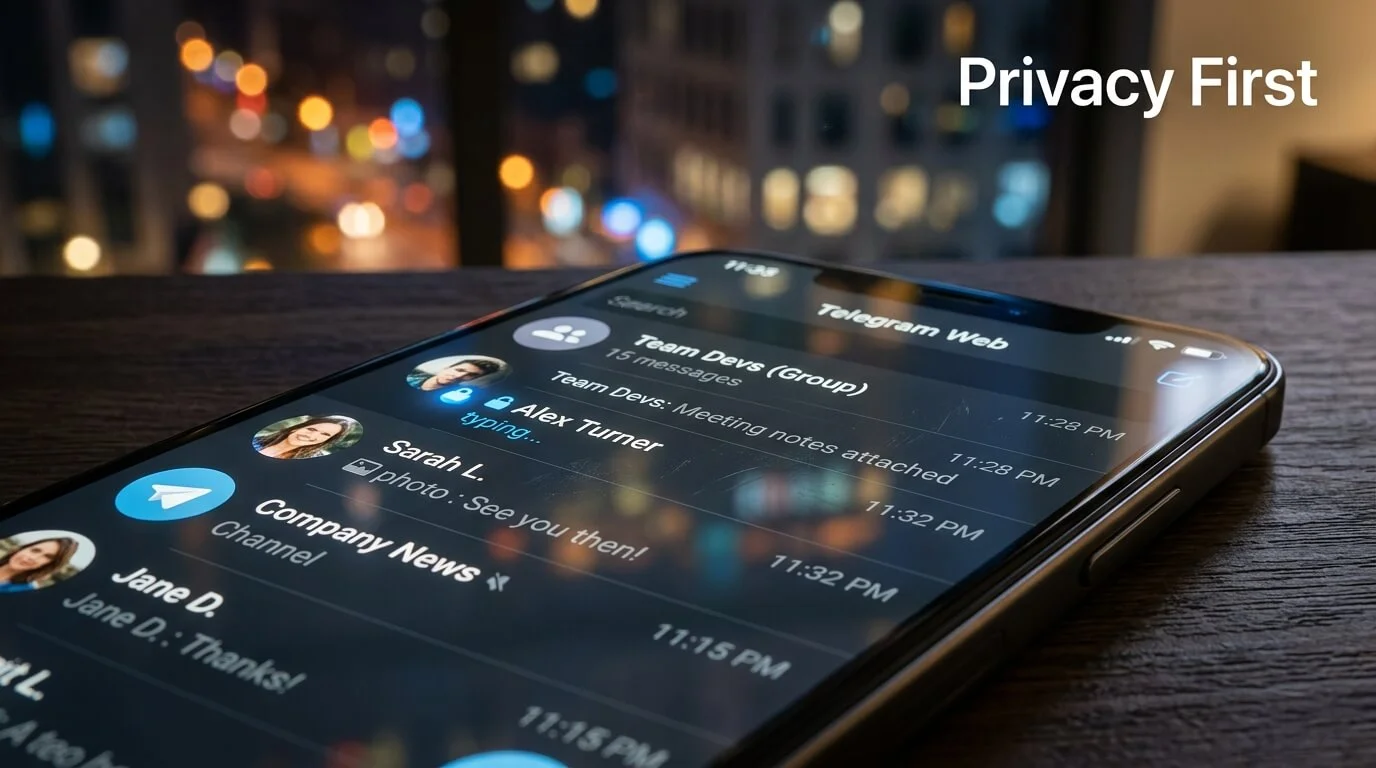
Security is one of the first concerns people raise, and it’s a fair one. Telegram Web uses encrypted connections between your browser and Telegram’s servers, and sessions are tied directly to your phone’s authorization — meaning no one can access your account through the browser without first scanning that QR code from your unlocked device.
That said, a few practical habits go a long way:
- Always log out of Telegram Web when using a public or shared computer.
- Check your “Active Sessions” list periodically in the mobile app to spot any unfamiliar devices.
- Avoid saving login sessions on computers you don’t personally control.
Frequently Asked Questions
Do I need to create a separate account for Telegram Web?
No. Telegram Web uses your existing account. You simply link it by scanning a QR code from your phone.
Can I use Telegram Web without a phone nearby?
You need your phone for the initial login, since it generates the QR code scan. After that, sessions can often stay active for a while, but reconnecting later usually requires your phone again.
Does Telegram Web support voice and video calls?
Voice messages are fully supported. Video and voice calling support can vary depending on which version of Telegram Web you’re using, so check the specific interface for the latest capabilities.
Is Telegram Web free to use?
Yes, completely. There are no subscription fees or hidden charges for using the browser version.
Can I use Telegram Web on multiple computers at once?
Yes, Telegram allows multiple linked devices simultaneously, so you can be logged in on your work laptop and home computer at the same time.
Final Thoughts
Telegram Web strips away the friction of downloading and installing software, giving you fast, full-featured access to your chats from virtually any computer. It’s practical for remote workers, students, business owners managing customer chats, or anyone who just wants a quick way to message without picking up their phone. Once you link your account, switching between mobile and browser feels completely natural — your conversations simply follow you.
Ready to try it? Grab your phone, open Telegram, and scan your way into a faster, more flexible way to stay connected.