
Have you noticed a bright patch, glowing area, or unusual white mark on your television, laptop, monitor, or phone screen? An LCD white spot can be frustrating, especially when you’re watching a dark movie scene or working with images.
The good news is that not every bright area means your entire display is ruined. Some problems are minor, while others may require professional repair.
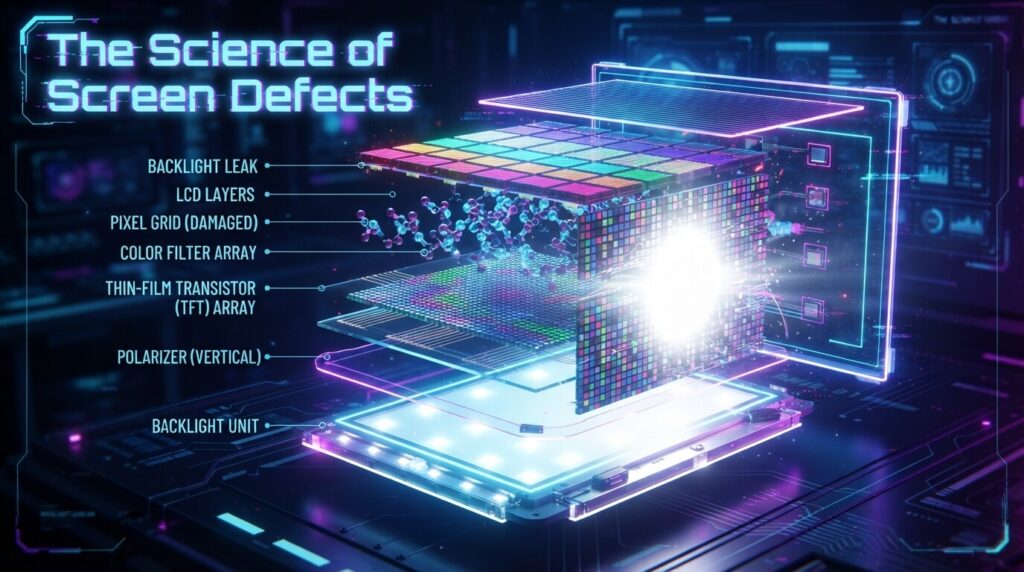
Think of an LCD screen like a carefully layered sandwich. Every layer has an important job. When one layer shifts, becomes damaged, or stops working properly, the light may no longer spread evenly. The result can be an annoying bright area that stands out from the rest of the screen.
This guide explains everything you need to know about white spots on LCD displays, including their causes, diagnosis, repair options, prevention, and frequently asked questions.
What Is an LCD White Spot?
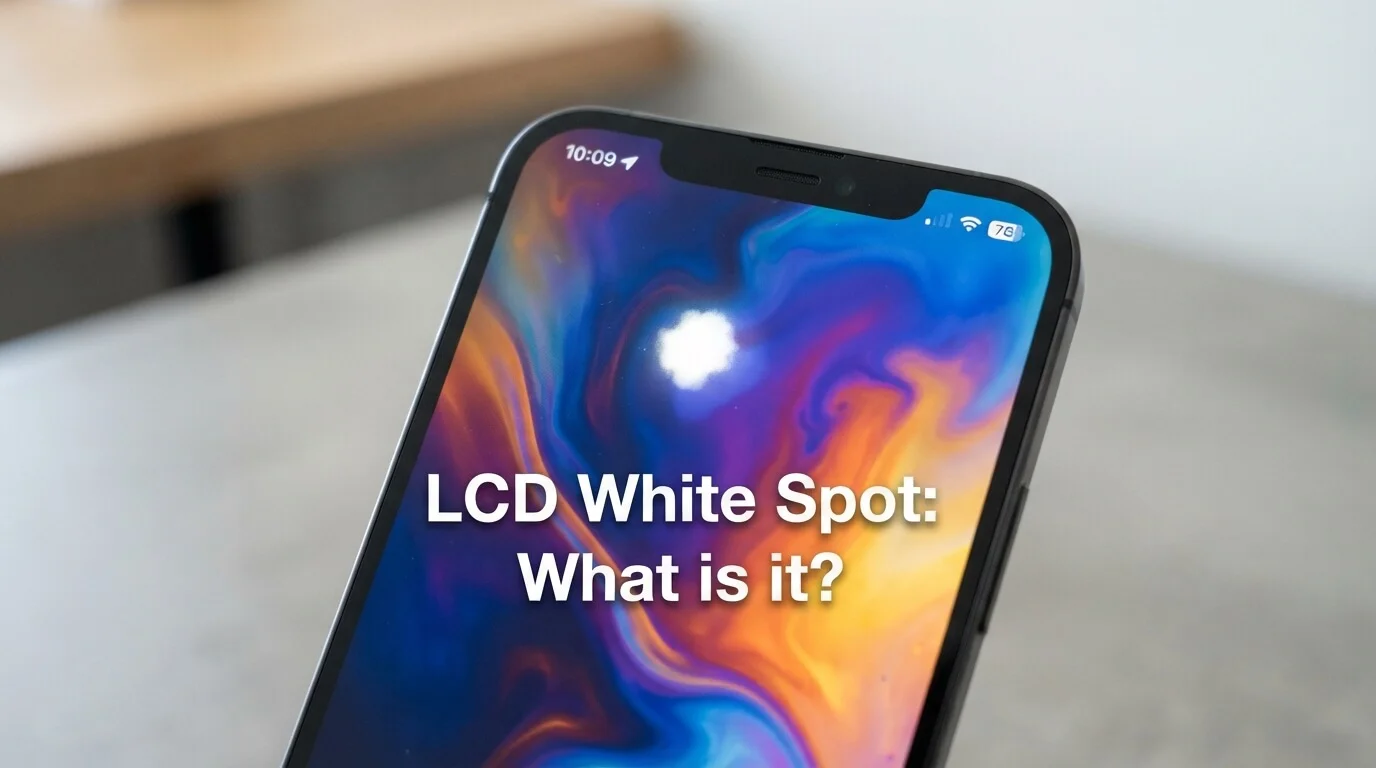
An LCD white spot is an unusually bright area that appears on a display. It may look like:
- A small white circle
- A glowing patch
- A bright cloudy area
- A concentrated point of light
- An uneven section of the screen
Unlike a normal white image on your display, this bright area may remain visible even when the screen shows dark colors.
In many cases, the issue becomes easier to notice when:
- Watching movies with dark scenes
- Using dark mode
- Viewing a black background
- Playing games with nighttime scenes
The size of the problem can vary. Some spots are tiny and barely noticeable, while others can become large enough to affect the entire viewing experience.
How Does an LCD Screen Work?
Before understanding why these bright areas appear, it helps to know how an LCD works.
LCD stands for Liquid Crystal Display. Unlike some other display technologies, an LCD panel does not usually create its own light. Instead, it uses a backlight.
The basic layers include:
- Backlight system
- Light diffuser layers
- Liquid crystal layer
- Color filters
- Polarizing layers
- Protective outer screen
The backlight shines through these layers to create the image you see.
The diffuser layers are particularly important because they spread light evenly across the screen. If something goes wrong with these components, light can become concentrated in one area.
That concentration often creates the appearance of a white or bright spot.
1. Pressure Damage: A Common Cause of Bright Areas
One of the most common causes of an LCD white spot is physical pressure.
LCD screens are delicate. Pressing too hard on the display can affect the internal layers.
This can happen when:
- Someone presses the screen with a finger
- A laptop is closed with an object inside
- A television is moved incorrectly
- A screen is cleaned using too much pressure
- A heavy object touches the display
Even if the outer surface looks fine, internal components may have shifted.
Why pressure creates bright spots
The layers inside an LCD display must remain properly aligned. Pressure can disturb that alignment.
Imagine pressing your finger into a soft mattress. The surface changes shape around the pressure point. Something similar can happen inside a display, although the components are much thinner and more delicate.
The result may be uneven light distribution.
Can a Pressure Mark Disappear?
Sometimes, a very minor pressure-related issue may become less noticeable. However, permanent internal damage usually does not disappear on its own.
Avoid repeatedly pressing the affected area. Trying to massage or push the spot may make the problem worse.
2. LED Backlight Diffuser Problems
Modern LCD televisions and monitors often use LED backlighting.
Behind the visible screen are LEDs that produce light. Diffuser sheets and other optical components help spread that light evenly.
If one of these components moves, breaks, or becomes damaged, you may see a concentrated bright area.
Common diffuser-related problems include:
- Detached diffuser lenses
- Damaged light guides
- Shifted internal sheets
- Loose optical components
- Uneven backlight distribution
This issue is particularly common in some older LED TVs.
Detached LED Diffuser Lenses
Many LED television displays contain small diffuser lenses positioned over the LEDs.
These lenses help spread light across a larger area.
If one becomes loose or falls out of position, the LED underneath may create a bright circular patch.
This type of problem often looks like:
- A clearly defined bright circle
- A concentrated glowing area
- A bright spot that remains in the same position
Unfortunately, accessing these components usually requires opening the television.
3. Physical Impact and Screen Damage
An accidental impact can also cause uneven brightness.
For example:
- A TV may be hit by an object
- A laptop may fall
- A monitor may be knocked over
- A phone may experience pressure inside a bag
The damage may not always cause visible cracks.
Instead, the internal display layers may be affected.
Signs of impact-related damage include:
- Bright spots
- Dark patches
- Colored lines
- Distorted images
- Cracked areas
- Uneven brightness
If the problem appeared immediately after an accident, physical damage is a likely explanation.
4. Heat Can Affect LCD Display Components
Electronic devices generate heat during normal operation.
Most displays are designed to handle this. However, excessive heat over long periods may affect internal components.
Possible causes include:
- Poor ventilation
- Direct sunlight
- High room temperatures
- Long periods of heavy use
- Blocked cooling vents
Heat may weaken adhesives or affect materials inside the display.
For televisions, keeping the device in a well-ventilated area is important.
Don’t place a TV inside an extremely tight cabinet unless enough airflow is available.
5. Manufacturing Defects and Aging Components
Sometimes the issue isn’t caused by anything you did.
Manufacturing defects can occasionally lead to uneven lighting.
Over time, components may also naturally wear out.
Aging-related problems may include:
- Weakening adhesives
- Failing LEDs
- Deteriorating diffuser materials
- Changes in display uniformity
An older television may gradually develop uneven brightness after years of use.
This doesn’t necessarily mean the entire device will immediately stop working. However, the issue may become more noticeable over time.
6. Dust and Internal Contamination
Dust on the outside of a screen is easy to clean.
Dust inside the display is a different matter.
Internal contamination can sometimes affect how light travels through the screen layers.
However, opening an LCD display at home can be risky because:
- The panel is fragile
- Internal layers must remain correctly aligned
- Dust can enter the display
- Cables can be damaged
For this reason, internal cleaning is usually best left to an experienced technician.
How to Diagnose an LCD White Spot
Before spending money on repairs, try to identify the type of problem.
Step 1: Display a Black Screen
A dark or completely black image makes bright spots easier to see.
You can use:
- A black image
- A dark movie scene
- A screen testing video
- A display test application
Observe whether the bright area remains visible.
If it does, the issue is likely related to the display rather than the content.
Step 2: Change the Brightness
Reduce the screen brightness.
Then increase it again.
Ask yourself:
- Does the spot become brighter?
- Does it disappear at lower brightness?
- Does its size change?
A backlight-related issue often becomes more obvious at higher brightness levels.
Step 3: Check Different Colors
Display several solid colors:
- Black
- White
- Red
- Green
- Blue
This can help you understand whether the problem is caused by:
- Backlighting
- Dead pixels
- Panel damage
- Color problems
A true bright spot may remain visible across multiple colors.
Simple Troubleshooting Before Seeking Repair
There are a few safe things you can try.
Restart the Device
Turn the device off completely.
Wait a few minutes and turn it back on.
This probably won’t fix physical damage, but it can help rule out temporary software or signal problems.
Check the Display Settings
Try adjusting:
- Brightness
- Contrast
- Backlight level
- Local dimming settings
- Picture mode
Sometimes aggressive brightness settings make minor uneven lighting more noticeable.
Test Another Input Source
If you’re using a television, try:
- Another HDMI cable
- Another device
- A built-in application
- A different input
If the spot appears everywhere, the display itself is probably responsible.
What You Should Not Do
When you notice an LCD white spot, you may find unusual repair methods online.
Be careful.
Don’t Press the Screen Repeatedly
Pressing the affected area can cause more damage.
LCD panels are extremely delicate.
Don’t Hit or Tap the Display
This may sound obvious, but some people attempt to fix display problems by tapping the screen.
That can turn a small issue into a major one.
Don’t Open the Display Without Experience
Televisions and monitors contain fragile components.
Opening them incorrectly can cause:
- Cracked panels
- Damaged cables
- Dust contamination
- Electrical risks
Professional repair is usually the safer option.
Can You Fix an LCD White Spot Yourself?
The answer depends on the cause.
You may be able to solve software-related issues by:
- Restarting the device
- Adjusting settings
- Updating display drivers
- Testing different inputs
However, physical and internal optical problems are more difficult.
For example, a loose diffuser lens inside a TV requires careful disassembly.
A cracked or permanently damaged LCD panel may need replacement.
Professional Repair Options
A qualified technician can inspect the display and determine whether the problem involves:
- LED backlights
- Diffuser lenses
- Internal layers
- LCD panel damage
- Connections
The repair process may involve opening the device and examining the backlight assembly.
Common repair approaches include:
- Reattaching loose diffuser components
- Replacing damaged LEDs
- Repairing the backlight system
- Replacing internal optical layers
- Replacing the entire panel
The final option can be expensive.
Repair or Replace: Which Is Better?
This depends on the device.
Small and Affordable Repair
Repair may make sense when:
- The device is relatively new
- The screen is otherwise working perfectly
- The repair cost is reasonable
- The affected area is becoming worse
Expensive Panel Replacement
Replacing an entire LCD panel can sometimes cost nearly as much as purchasing a new device.
In that situation, replacement may be the more practical choice.
Consider these questions:
- How old is the device?
- What is the repair cost?
- Is the device still under warranty?
- Are there other problems?
- Is the bright spot getting worse?
A repair quote can help you make an informed decision.
LCD White Spot Problems on Different Devices
LCD Televisions
Televisions commonly develop bright areas due to:
- Backlight problems
- Loose diffuser lenses
- Aging components
The issue is often most noticeable during dark scenes.
Laptop Screens
Laptop displays may develop problems because of:
- Pressure while carrying the laptop
- Closing the lid on an object
- Physical impact
- Panel damage
Always keep objects away from the keyboard before closing the lid.
Computer Monitors
Monitors may experience:
- Pressure damage
- Backlight uniformity problems
- Manufacturing defects
- Aging components
Avoid pressing the screen when cleaning it.
Smartphones and Tablets
Modern mobile devices may use different display technologies, but LCD-equipped devices can still develop bright patches.
Physical pressure and impact are common causes.
If the device has recently been dropped, internal damage is possible even without visible cracks.
How to Prevent White Spots on LCD Screens
Prevention is always better than repair.
Handle Screens Carefully
Don’t press directly on the display.
When moving a television, hold it from the frame rather than pressing the panel.
Clean the Screen Properly
Use a soft microfiber cloth.
Avoid excessive pressure.
Don’t spray large amounts of liquid directly onto the display.
Protect Laptops During Travel
Use a padded laptop bag.
Don’t place heavy objects on top of the laptop.
Make sure nothing is sitting on the keyboard before closing the lid.
Keep Devices Cool
Provide enough airflow.
Avoid prolonged exposure to direct sunlight.
Keep ventilation areas clear.
Understanding the Difference Between a White Spot and Dead Pixels
These problems are often confused.
Dead Pixel
A dead pixel usually appears as a tiny black dot.
Stuck Pixel
A stuck pixel may remain red, green, blue, or another color.
Bright Spot
A bright spot is usually larger and may involve the backlight or internal display layers.
This difference matters because the repair methods are not the same.
A single pixel problem may be very small.
A backlight-related problem can affect a much larger area.
When Should You Contact the Manufacturer?
If the device is still under warranty, contact the manufacturer before attempting any repair.
Taking the device apart yourself may affect warranty coverage.
You should also check:
- Warranty documents
- Return policies
- Extended protection plans
Take clear photographs of the problem before contacting support.
A photo or video showing the issue against a dark background can make the problem easier to explain.
Does an LCD White Spot Get Worse Over Time?
It can.
The answer depends on the underlying cause.
A stable manufacturing defect may remain unchanged for years.
However, problems involving:
- Loose components
- Failing LEDs
- Heat damage
- Weakening adhesives
may gradually become more noticeable.
If the spot is increasing in size or additional bright areas appear, professional inspection is a good idea.
Frequently Asked Questions About LCD White Spots
1. What causes an LCD white spot?
Common causes include pressure damage, loose diffuser lenses, backlight problems, physical impact, heat, and aging internal components.
2. Can an LCD white spot disappear on its own?
A temporary software or display-setting issue may disappear, but permanent physical damage usually won’t fix itself.
3. Is a white spot the same as a dead pixel?
No. A dead pixel is usually tiny and affects an individual pixel, while a bright area is often caused by the backlight or internal display layers.
4. Can pressing the screen fix a white spot?
No. Pressing the screen may make the damage worse and should generally be avoided.
5. How much does it cost to repair an LCD bright spot?
The cost depends on the device, the cause, and the parts required. A simple internal component repair may cost much less than replacing an entire display panel.
6. Is it safe to keep using a screen with a bright spot?
Usually, a small stable spot won’t immediately make the device unsafe to use. However, if the issue is spreading, overheating, flickering, or accompanied by other problems, have the device inspected.
7. Can heat cause bright patches on an LCD?
Excessive heat may contribute to internal component problems over time, particularly if adhesives or optical layers are affected.
Conclusion: Understanding the Problem Helps You Choose the Right Solution
An LCD white spot can be annoying, but it doesn’t always mean you need to replace your entire device.
The key is identifying the cause.
A small bright patch may result from pressure, physical impact, a backlight problem, or a loose internal diffuser component. Simple troubleshooting can help rule out software and input issues, while a professional technician can diagnose internal damage.
Remember: treat your display gently. Avoid pressing the screen, protect devices during transport, clean them carefully, and keep them properly ventilated.
A screen is like a window into your digital world. When that window develops a bright mark, understanding what’s happening behind the glass is the first step toward finding the right solution.
If the spot is small and stable, you may choose to continue using the device. But if it grows, spreads, or affects your viewing experience, getting a professional repair assessment is often the smartest next step.