
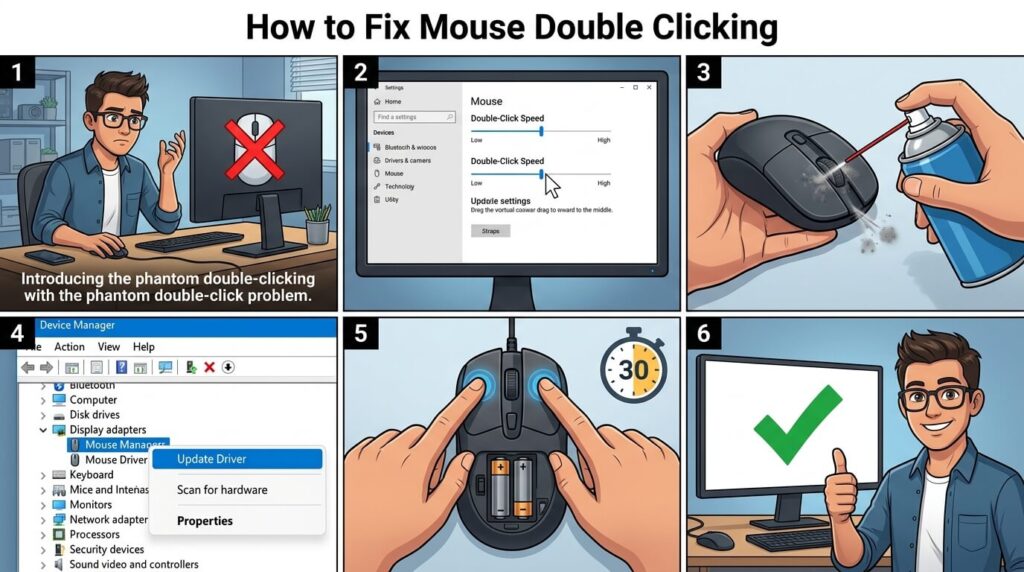
Introduction
Have you ever clicked your mouse once, only to have your computer register two clicks? It can be incredibly frustrating, especially when you’re trying to select files, play games, or work quickly. The good news is that mouse double clicking is often fixable without immediately buying a new mouse.
The problem can come from Windows settings, outdated drivers, software conflicts, dirt, or a worn-out mouse switch. Think of your mouse like a light switch: when you press it once, it should send one clear signal. If the switch starts sending two signals, your computer may interpret one click as two.
In this guide, you’ll learn how to fix mouse double clicking using simple methods, starting with the easiest solutions and moving toward hardware-related fixes.
1. Why Is My Mouse Double Clicking?
Before trying random fixes, it helps to understand what might be happening.
A mouse can register two clicks for several reasons. Sometimes the issue is caused by an incorrect double-click speed setting. In other cases, dust or debris may interfere with the physical button.
A more serious possibility is a worn-out mechanical switch inside the mouse. This is especially common with older mice or devices that have been used heavily.
Other possible causes include:
- Incorrect Windows settings
- Corrupted or outdated drivers
- USB connection problems
- Wireless interference
- Mouse software conflicts
- Physical damage
- A defective switch
- Low battery in a wireless mouse
The important thing is not to assume the mouse is broken immediately. Start with software and connection checks before moving toward hardware repairs.
2. Check Your Mouse Double-Click Settings
One of the easiest things to check is your computer’s double-click speed.
On Windows, open Settings and search for mouse settings. Depending on your Windows version, you may also find additional mouse options through the Control Panel.
Look for the double-click speed setting.
If the speed is set unusually low or high, your clicking behavior may feel strange. Move the slider toward the middle and test the mouse.
You can also use the folder-testing area provided by Windows, if available, to determine whether a single click is being interpreted incorrectly.
Important: A double-click speed setting does not normally make a healthy mouse physically send two separate click signals. However, changing it can help rule out configuration problems.
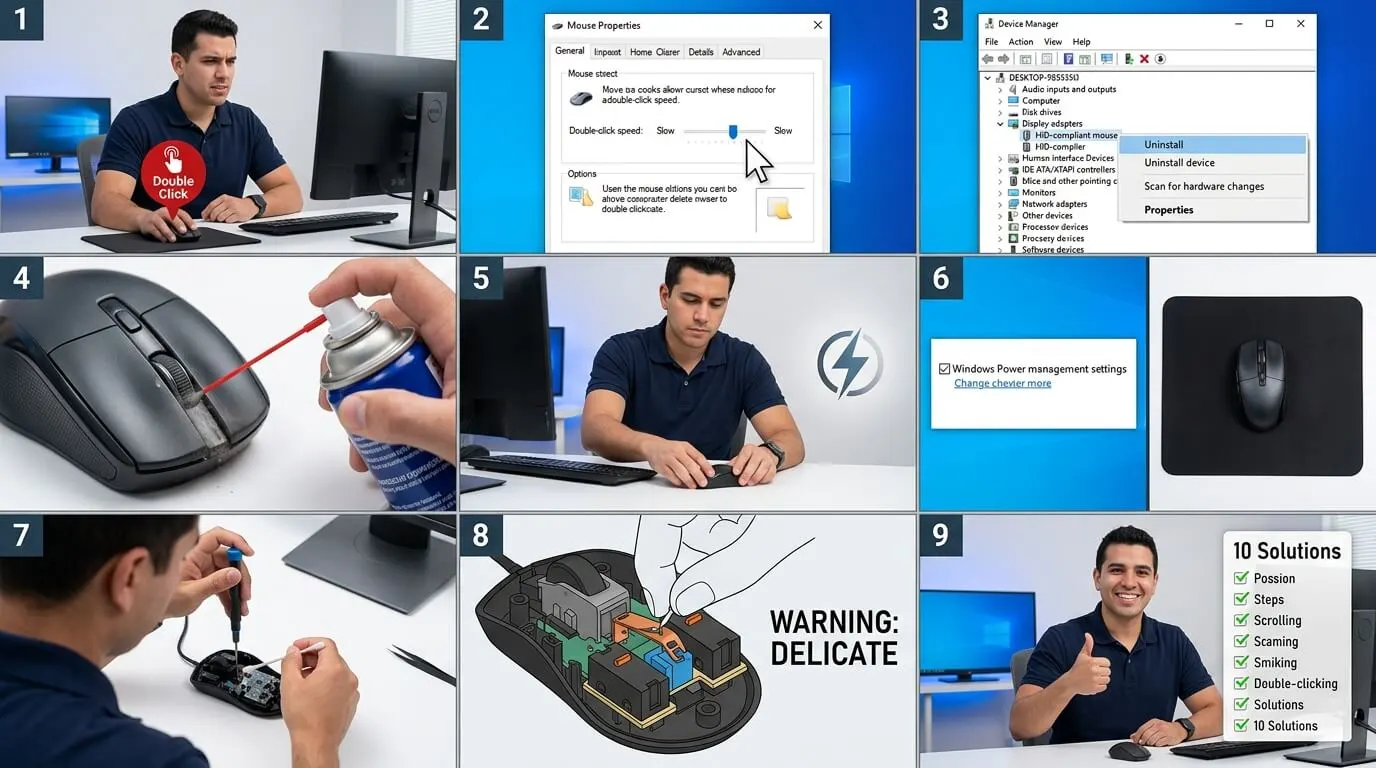
3. Restart Your Computer and Mouse
It sounds almost too simple, but restarting can eliminate temporary software problems.
If you’re using a wired mouse:
- Save your work.
- Disconnect the mouse.
- Restart your computer.
- Connect the mouse again.
- Test several single clicks.
For a wireless mouse, turn it off and back on. If it uses replaceable batteries, consider installing fresh batteries.
Why does this help? Your operating system continuously communicates with USB devices and their drivers. A temporary software error can sometimes make the device behave strangely.
If the problem disappears after restarting but returns later, you may have a software, driver, or connection issue rather than a permanently damaged mouse.
4. Clean the Mouse Carefully
Dust and debris can affect the physical buttons.
If you’ve used your mouse for months or years without cleaning it, tiny particles may have accumulated around the button mechanism.
Before cleaning, disconnect the mouse or turn it off.
You can gently:
- Wipe the outside with a dry or slightly damp microfiber cloth.
- Remove visible dust around the buttons.
- Use appropriate compressed air carefully around gaps.
- Clean the mouse wheel and surrounding areas.
Avoid pouring liquid into the mouse or spraying cleaning chemicals directly onto it.
If you decide to open the mouse, remember that doing so can damage clips, cables, or internal components. It may also affect warranty coverage.
After cleaning, reconnect the device and test it.
If the double-clicking disappears, contamination may have been contributing to the problem.
5. Test the Mouse on Another Computer
This is one of the most useful troubleshooting steps.
Connect the mouse to another computer and perform several single clicks.
If the mouse double clicks on both computers, the problem is probably inside the mouse itself.
If it works normally on the second computer, the original computer may have a Windows setting, driver, USB port, or software issue.
This simple test works like a process of elimination. Instead of guessing which part is broken, you’re narrowing down the possibilities one at a time.
You can also test another mouse on your original computer. If another mouse works correctly, your original mouse becomes the main suspect.
6. Update or Reinstall Mouse Drivers
Drivers allow Windows to communicate with hardware devices.
Although basic mice usually work automatically with Windows, driver problems can occasionally cause unexpected behavior.
To troubleshoot:
- Right-click the Start button.
- Open Device Manager.
- Find Mice and other pointing devices.
- Locate your mouse.
- Right-click it.
- Choose the appropriate update or uninstall option.
- Restart the computer if necessary.
Windows may reinstall the basic driver automatically after restarting.
If your mouse manufacturer provides dedicated software, check whether an updated version is available.
Do not download random drivers from unknown websites. Use Windows Update or the manufacturer’s official support resources whenever possible.
7. Check for Software and USB Problems
Sometimes the mouse itself is fine, but another program is interfering with how clicks are interpreted.
Gaming mice often come with configuration software that can change:
- Button assignments
- Click behavior
- Macros
- Debounce settings
- Polling rates
- Profiles
Temporarily close or disable mouse-related software and test the device again.
You should also try another USB port if you’re using a wired mouse.
For desktop computers, connecting the mouse directly to a rear motherboard USB port can sometimes be useful for troubleshooting. Avoid unnecessary USB hubs while testing.
For wireless mice, check the receiver’s position and remove possible sources of interference.
8. Adjust Windows Mouse Settings
Windows provides several mouse options that are worth reviewing.
Open the mouse settings and check whether any unusual accessibility or button-related options have been enabled.
If you use accessibility features, make sure they are configured intentionally.
You can also test the mouse with a clean or different Windows user account. If the problem disappears under another account, a user-specific setting or application may be involved.
Another useful step is to install pending Windows updates. Operating-system updates can resolve bugs involving hardware compatibility.
However, don’t change numerous settings at once. Make one change, test the mouse, and then move to the next step. Otherwise, you won’t know which solution actually worked.
9. Fix Double Clicking on a Gaming Mouse
Gaming mice deserve a little extra attention because they often receive much heavier use than ordinary office mice.
If you’re experiencing double clicks while gaming, first check the mouse manufacturer’s software.
Some gaming mice include a debounce or click-response setting. This setting controls how quickly successive signals are accepted.
If the setting is available, follow the manufacturer’s recommendations rather than choosing an extreme value.
Also check whether a macro or custom button profile is causing the problem.
Try resetting the mouse to its default profile and test it again.
If the mouse still produces unwanted double clicks across different computers, the physical switch may be wearing out.
For competitive gaming, even occasional false clicks can become a serious problem. In that situation, reliability matters more than trying to squeeze extra life out of an aging mouse.
10. When a Mouse Switch Is Failing
If you’ve tested the mouse on another computer, cleaned it, checked the settings, and tried different connections, a failing switch becomes a strong possibility.
Inside many traditional mice are small mechanical switches. Every time you click, the switch physically moves and sends an electrical signal.
After thousands or millions of clicks, the mechanism can wear down.
A failing switch may produce symptoms such as:
- One click becoming two clicks
- Dragging stopping unexpectedly
- Files opening when you only intended to select them
- Text being selected incorrectly
- Random click registration
- Problems that become more frequent over time
This is different from a simple Windows configuration problem because the behavior usually follows the mouse to another computer.
If you’re comfortable with electronics repair, replacing a mouse switch can sometimes restore the device. However, it generally requires opening the mouse and may require soldering.
For most users, replacing the mouse is simpler and safer.
11. Should You Repair or Replace the Mouse?
The answer depends on the mouse’s age, quality, cost, and your comfort with repairs.
A basic inexpensive mouse may not be worth repairing. Buying a replacement could take less time and cost less than purchasing tools or replacement components.
A premium gaming mouse, ergonomic mouse, or specialized device may be worth repairing.
Consider these questions:
Is the mouse still under warranty?
If yes, contact the manufacturer before opening it.
Does it double click on multiple computers?
If yes, hardware is more likely to be responsible.
Is the mouse otherwise in excellent condition?
A switch replacement could potentially extend its useful life.
Are repair tools readily available?
If repair requires soldering and you’re unfamiliar with it, replacement may be the better choice.
Remember, your goal isn’t necessarily to save the mouse at any cost. Your goal is to have a reliable pointing device.
12. How to Prevent Future Mouse Problems
Once you’ve solved the issue, a little maintenance can help keep your next mouse working properly.
Keep the mouse and desk area reasonably clean. Avoid eating directly over the mouse when possible, because crumbs and dust can eventually enter the button mechanism.
Don’t yank a wired mouse by its cable. For wireless models, replace batteries before they become completely depleted.
If you use a gaming mouse heavily, avoid unnecessarily aggressive clicking. While modern mice are designed for substantial use, physical switches still experience wear.
It’s also useful to keep important files backed up. A malfunctioning mouse is annoying, but accidentally deleting or moving something important because of unexpected clicks can be much worse.
Most importantly, don’t ignore early warning signs. If your mouse occasionally double clicks today, it may become much more unreliable later.
13. Conclusion
Learning how to fix mouse double clicking doesn’t require advanced technical knowledge in most cases. Start with the simplest solutions: check your mouse settings, restart the computer, clean the device, try another USB port, and test the mouse on another computer.
If the problem follows the mouse everywhere, a worn physical switch is likely. At that point, you can consider warranty service, professional repair, switch replacement, or purchasing a new mouse.
The key is to troubleshoot systematically rather than replacing the device immediately. One small test can often tell you whether the problem is Windows, the connection, or the mouse itself.
14. Frequently Asked Questions
1. Why does my mouse double click when I click once?
A mouse may double click because of a worn mechanical switch, dirt around the button, software settings, driver problems, or a connection issue. Testing it on another computer can help identify the cause.
2. Can I fix a double-clicking mouse without replacing it?
Yes. Try changing the mouse settings, cleaning the device, updating drivers, changing USB ports, and testing it on another computer. If the physical switch is damaged, repair may be necessary.
3. How do I know if my mouse switch is broken?
If the mouse produces double clicks on multiple computers despite normal settings and clean connections, the internal switch may be worn or damaged.
4. Can Windows cause a mouse to double click?
Windows settings or software can affect mouse behavior, but persistent double-clicking across different computers is more likely to indicate a hardware problem.
5. Should I repair or replace a double-clicking mouse?
For an inexpensive or older mouse, replacement is often more practical. A premium or specialized mouse may be worth repairing, especially if it is still under warranty.